Month End
User Guide and Setup Reference
Business Central month-end close extension
1. Introduction
The Month End app adds a month-end close cockpit to Business Central. A dedicated role centre, Month End Process, shows tiles for each area of the close: General Ledger, Receivables, Payables, Stock, Banking, Fixed Assets, Projects, Service and Shopify. Each tile shows a count or an amount at the cut-off date and drills down to the exact records behind it.
For every subledger the app also reconciles the subledger to its G/L control accounts. It explains each difference transaction by transaction and gives each area a status: Balanced, Explained or Action Required.
1.1 What the app does and doesn't do
- Read-only on business data. The app never posts, adjusts, deletes or changes ledger entries, documents or journals.
- Actions open standard pages. Actions such as Adjust Exchange Rates, Post Inventory Cost to G/L or Calculate Depreciation open the standard Business Central request page, and you review and run it yourself.
- Copilot only writes text. The optional Copilot features (section 6.7) put the app's own figures into words. They never post, change or apply anything, and their text is kept only when you choose Keep it.
- It writes only its own data:
- its setup;
- the cached tile values;
- the acknowledgements you record;
- the Month-End Accounts;
- the User Role Center Setup.
1.2 Areas covered
| Area | Role centre section | Reconciliation worksheet | Optional |
|---|---|---|---|
| General Ledger | General Ledger | GL Close Issues | No |
| Receivables (AR) | Sales and AR | AR Recon Worksheet | No |
| Payables (AP) | Purchase and Payable | AP Recon Worksheet | No |
| Inventory | Inventory | Inventory Recon Worksheet | No |
| Warehouse | Warehouse | GRNI vs G/L (when expected cost is posted to the G/L) | No |
| Banking | Banking | Bank Recon Worksheet | No |
| GST/VAT | GST/VAT Reconciliation | GST/VAT Reconciliation (accounts against open GST entries) | No |
| Fixed Assets | Fixed Assets | FA Recon Worksheet | Yes |
| Projects | Projects | Project WIP Recon Worksheet | Yes |
| Service | Service | Service Prepaid Recon Worksheet | Yes |
| Shopify | Shopify | Shopify Close Issues | Yes |
The app requires Microsoft's free Shopify Connector app to be installed in the environment, even if you don't use Shopify. The Shopify section does nothing until you turn it on and a Shopify shop is enabled.
1.3 Key terms
| Term | Meaning |
|---|---|
| Cut-off date | The date all tiles are calculated at, usually the last day of the month being closed. It is set by the Cut-off Date Rule in Month-End Setup. |
| Starting Point | A date whose reconciliation differences are accepted as they are and brought forward, whatever happened before (go-live, data migration, earlier history). Set per area. See section 3.2. |
| Go-live | The earliest Starting Point of any area. Nothing dated up to it is listed for review, and areas without an opening of their own leave it out. |
| Opening difference | The difference brought forward from the Starting Point, or from the last month signed off. It is shown as balances, and only the movement since it is checked. |
| Movement | Difference minus the opening difference: what changed since the opening and needs explaining this month. |
| Reconcile From Date | Retired. An older first posting date for the reconciliations. Once any area has a Starting Point, it is ignored and hidden. |
| Tolerance (LCY) | A difference within this amount, plus or minus, counts as balanced. |
| Difference | G/L balance minus subledger balance for a control account. |
| Explained | The part of a difference covered by identified transactions: date mismatches, manual postings, setup mapping and so on, plus acknowledged lines. |
| Unexplained | Movement minus Explained (with no Starting Point, Difference minus Explained). This is what still needs investigating. |
| Acknowledge | Mark a line as reviewed and expected. Acknowledged lines drop out of the tiles. |
| Recon Status | Balanced: the difference is within the tolerance. Explained: what is left after identified and acknowledged items is within the tolerance. Action Required: anything else. |
2. Before you start
2.1 Permission sets
| Permission set | Assign to | Gives |
|---|---|---|
| FLA MONTH-END | Everyone who works on the month-end close | Read access to the source tables the tiles use, full access to the app's own setup, cue and acknowledgement tables, and permission to run all month-end pages. |
| FLA ROLE CTR ADMIN | Administrators who maintain User Role Center Setup | Insert, modify and delete on User Role Center Setup. Restricted users don't need any permission set; the restriction check works for everyone. |
| Shpfy - Read (from the Shopify Connector) | Month-end users, if you use the Shopify section | Read access to the Shopify Connector tables that FLA MONTH-END can't grant: gift cards, log entries, disputes, skipped records, orders to import and synchronization info. Without it those Shopify tiles show 0. |
To assign a permission set:
- Search for Users and open the user card.
- On the User Permission Sets FastTab, add FLA MONTH-END, and FLA ROLE CTR ADMIN if the user is an administrator.
2.2 Choose the Month End Process role centre
- Choose the settings icon, then My Settings.
- In Role, choose Month End Process, then choose OK.
If your administrator has restricted your Role Centers (see chapter 5), the Role list shows only the roles you are allowed to use.
2.3 Setup checklist
Complete these steps once, before the first month-end close:
- Open Month-End Setup and set the cut-off date rule and tolerance, and how areas are signed off: Sign-off Steps and Allow Same User (chapter 3).
- Choose Insert Default Month-End Reason Codes, then Set Starting Point at the last month end before the first month you close with the app (section 3.2).
- Optional: set the order of the areas with Area Order (section 3.10).
- Turn on the optional areas you use: Fixed Assets, Projects, Service, Shopify (section 3.7).
- Set the area thresholds: overdue days, unapplied days, stale days and so on.
- List your suspense and clearing accounts in Month-End Accounts (section 3.9).
- Optional: set your own tile thresholds and colours with Set Up Cues (chapter 4).
- Optional: restrict Role Centers per user with User Role Center Setup (chapter 5).
- Optional: turn on Enable Copilot (section 3.11).
3. Month-End Setup
Search for Month-End Setup, or open it from the Month End Process role centre menu. The page has one record for the company, and it's created the first time you open the page.
3.1 General
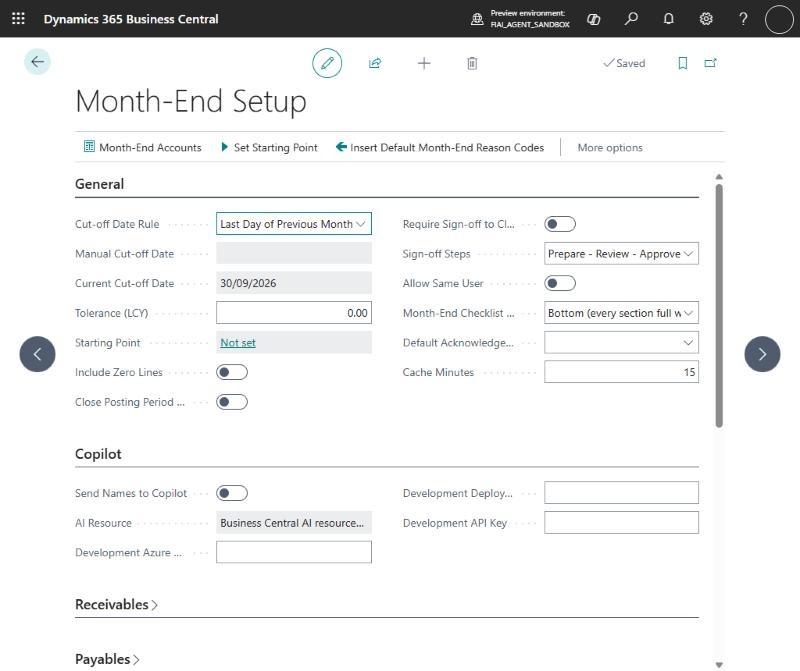
| Field | Description | Default |
|---|---|---|
| Cut-off Date Rule | How the cut-off date for all tiles is determined:
| Last Day of Previous Month |
| Manual Cut-off Date | The cut-off date used when the rule is Manual. Editable only when the rule is Manual. | Blank |
| Current Cut-off Date | Read-only. The cut-off date the tiles use now, based on the rule. | – |
| Tolerance (LCY) | A reconciliation difference within plus or minus this amount counts as Balanced and shows green. Use a small amount, for example 1.00, to absorb rounding. | 0 |
| Reconcile From Date | Retired. Once any area has a Starting Point, the app uses the day after the go-live instead and hides this field. It shows only while it still holds a date, with a notification asking you to set a Starting Point. See section 3.2. | Blank (all entries) |
| Starting Point | How many areas have a Starting Point and the latest date. Choose it, or Starting Points, to see and manage them. See section 3.2. | Not set |
| Include Zero Lines | When off (the default), lines and documents with nothing in them don't count in the tiles:
Turn it on to count everything. | Off |
| Close Posting Period Automatically | When on, as soon as Month-End Status finds every area Balanced or Explained, it sets Allow Posting From in General Ledger Setup to the day after the cut-off date and shows a notification with a link to General Ledger Setup. It only does this for users who can change General Ledger Setup, never moves the date backwards, and skips it if Allow Posting To is before the new date. When off, use Close Posting Period on Month-End Status (section 6.2). | Off |
| Default Acknowledgement Reason Code | The reason code filled in when you acknowledge lines or undo an acknowledgement. You can change it each time. A reason code is always required. Set up the codes on the standard Reason Codes page, or choose the Insert Default Month-End Reason Codes action on Month-End Setup. It adds ME-TIMING, ME-CUTOFF, ME-LEGACY, ME-IMMAT, ME-OFFSET, ME-MANUAL, ME-RECLASS, ME-FXREVAL, ME-INVEST, ME-SYSTEM and ME-DISPUTE if they don't exist yet, and doesn't change existing codes. | Blank |
| Month-End Checklist Position | Where the Month-End Checklist sits on the Month End Process role centre: Bottom, so every section above it is one full-width row, or Top. Changing it asks for confirmation and moves everyone on the Month End Process role centre to the matching profile. Each user can also choose Month End Process or Month End Process (Checklist on Top) in My Settings. With the checklist at the top, Business Central may place the sections below it side by side. | Bottom |
| Require Sign-off to Close Period | When on, the month must be signed off (section 6.4) before Close Posting Period sets Allow Posting From, manually or automatically. | Off |
| Cache Minutes | How many minutes calculated tile values are reused before they are recalculated. 0 recalculates every time the role centre opens. Use Refresh on any section to recalculate at once. | 15 |
| Sign-off Steps | The steps each area goes through before the month can be signed off: Prepare - Review - Approve, or Prepare - Approve for teams that don't review separately. A change applies to the next sign-off action; areas already signed keep their stamps. See section 6.4. | Prepare - Review - Approve |
| Allow Same User | When off, each sign-off step of an area needs a different user: the reviewer can't be the preparer, and the approver can't be either. Turn it on when one person does the month end alone. | Off |
| Area Order | An action, not a field. Sets the order of the areas on the checklist, Month-End Status, sign-off and the close pack. See section 3.10. | -- |
3.2 Starting Point and Reconcile From Date (go-live and legacy data)
A company may have used Business Central for years, and go-live, opening balances and data migration are often loaded in ways that don't reconcile. The Starting Point handles this without anyone needing to know the go-live date, the migration balances or who posted them.
Starting Point (recommended)
Choose Set Starting Point on Month-End Setup. Enter a date, usually the last month end before the first month you close with the app, a reason code (ME-OPENING) and a comment. Leave Area blank to set it for every area, or choose one area. For each area, the app stores every reconciliation line at that date from the full history: G/L balance, subledger balance and difference. Those differences are accepted as they are.
From then on, each reconciliation works as a roll-forward:
- Balances are the full history, so G/L and subledger always agree in total.
- Each line shows the opening as balances: Opening G/L Balance, Opening Subledger Balance and Opening Difference, from the latest opening before the cut-off. Next to them, G/L Movement, Subledger Movement and Movement show what changed since. Only the movement is checked: a difference that is only the opening difference is Explained and isn't shown in red. The worksheet title shows the opening date.
- Nothing dated up to the opening is listed or reviewed. The manual postings lists and tiles start the day after the opening, even when the go-live falls inside the cut-off month, so the journals posted at go-live to line up the subledger and G/L trial balances never appear on a review or acknowledgement screen. Cost not posted to G/L counts only what wasn't posted since the opening.
- A posting dated on or before the opening but made after it shows as Prior Period Changed. It is unexplained until you acknowledge it, so back-dating into a reconciled period is flagged.
- A manual posting after the opening that reverses a line's opening difference exactly, for example a journal correcting a go-live difference, shows as Opening Difference Corrected instead of Manual G/L Posting.
- The company go-live is the earliest Starting Point of any area. Areas with no opening of their own, such as Warehouse and Service, leave out everything up to it.
- Signing off a month stores its closing position as the next opening. Reopening the month removes it.
The Starting Point is controlled per area. Each area's worksheet (Inventory, AR, AP, Bank, Fixed Assets, Projects) and the GST/VAT section has a Starting Point action. It opens Reconciliation Openings for that area, where you can Set, Change or Remove its Starting Point, and see the lines of each opening. Changing an area's Starting Point also removes its months rolled forward since, as they were built on the old one. Every set, change and removal is in the Month-End Log.
For GST/VAT, open GST/VAT at a date is worked out from the settlements: entries posted by the date that are still open or were settled after it. The Service prepaid reconciliation compares entries not yet moved, which can't be worked out as at an earlier date, so Service has no Starting Point.
Recapture Starting Point
Go-live journals are often posted after the Starting Point was set but dated on or before it. They then show as Prior Period Changed. To make them part of the opening, open Reconciliation Openings (the Starting Point action on the area's worksheet) and choose Recapture Starting Point. It rebuilds the Starting Point at the same date from the balances now. Leave Area blank to recapture every area that has a Starting Point. It asks for a reason code and comment, and the Month-End Log records the opening difference before and after.
Recapture isn't allowed once a month after the Starting Point has been signed off. From then on a back-dated posting really changes a closed month, so it stays Prior Period Changed; use Change Starting Point to move the opening instead.
Undo a month end
To undo a signed-off month, open its Month-End Period and choose Reopen Month (section 6.4). This also removes the opening the sign-off stored, so the next month rolls forward from the previous opening again. Sign the month off again once it is corrected.
Reconcile From Date (retired)
Reconcile From Date is kept only for companies that used it before Starting Points. Once any area has a Starting Point, the app ignores it and uses the day after the go-live, and the field is hidden on Month-End Setup. If it still holds a date, a notification asks you to set a Starting Point instead. The rest of this section describes how it worked.
When a company goes live, opening balances and the go-live stock take are often loaded in ways that don't reconcile. For example, the stock value is journaled to the G/L while the value entries are never posted to G/L. Without a Reconcile From Date, these legacy items show as differences every month.
Areas without a Starting Point can use Reconcile From Date instead. Set it to the first date after go-live, for example the day after the go-live stock take. Entries posted before that date are then ignored on both the G/L side and the subledger side, so each reconciliation covers only the Reconcile From Date up to the cut-off date.
| Applies to | Does not apply to (always uses all entries) |
|---|---|
|
|
When the date is set, worksheet titles show the period covered, for example Inventory Recon Worksheet – 01/05/26 to 31/08/26.
After changing Reconcile From Date, choose Refresh on each section so the tiles are recalculated straight away rather than after the cache time.
3.3 Receivables
| Field | Description | Default |
|---|---|---|
| AR Overdue Days | How many days past the due date, counted back from the cut-off date, a customer balance must be to show in the Overdue tile. | 90 |
| AR Unapplied Days | How many days before the cut-off date an unapplied customer payment or credit must be posted to show in the Unapplied Payments and Credits tiles. | 30 |
3.4 Payables
| Field | Description | Default |
|---|---|---|
| AP Unapplied Days | How many days before the cut-off date an unapplied vendor payment or credit must be posted to show in the Unapplied Payments and Credits tiles. | 30 |
3.5 Inventory and Warehouse
| Field | Description | Default |
|---|---|---|
| Stale WIP Days (Inventory) | How many days a released production order may have consumption or capacity posted without output before it shows in the Stale WIP Orders tile. | 30 |
| GRNI Accrual Account (Warehouse) | The G/L account you accrue goods received not invoiced on, if receipts are not posted to the G/L as expected cost. When set, the GRNI Not Accrued tile in the Warehouse section compares the received-not-invoiced amount with the accrual account's balance. Leave blank to hide the tile. | Blank |
3.6 Banking
| Field | Description | Default |
|---|---|---|
| Stale Outstanding Days | How old an open bank ledger entry must be, counted back from the cut-off date, to show in the Stale Outstanding Items tiles. | 60 |
3.7 Optional areas: Fixed Assets, Projects, Service and Shopify
These areas are off by default. While an area is off, its section on the role centre shows only a one-line note, it isn't calculated, and it isn't counted in Month-End Status.
| Field | Description | Default |
|---|---|---|
| Enable Fixed Assets | Turns on the Fixed Assets checks and the FA Recon Worksheet. | Off |
| Extra Depreciation Books | A filter of extra depreciation books, for example a tax book, to include in the depreciation tiles. Books with G/L integration are always reconciled. | Blank |
| Assets Under Construction Subclass | The FA subclass used for assets under construction. When set, the Assets Under Construction Balance tile shows. Leave blank to hide it. | Blank |
| Enable Projects | Turns on the Projects checks and the Project WIP Recon Worksheet. | Off |
| Unbilled Days | How old a billable project planning line must be, counted back from the cut-off date, to show in the Billable Not Transferred to Invoice tiles. | 30 |
| Enable Service | Turns on the Service checks and the Service Prepaid Recon Worksheet. If Service Management isn't set up in the company, the section says so. | Off |
| Stale Order Days | How old an open service order must be, counted back from the cut-off date, to show in the Stale Open Orders tile. | 30 |
| Enable Shopify | Turns on the Shopify checks and Shopify Close Issues. They run only when at least one Shopify shop is enabled; otherwise the section says so. | Off |
| Shopify Sync Stale Hours | How many hours may pass since the last order, product, customer or company synchronization of an enabled shop before it shows in the Sync Not Run Recently tile. 0 turns the check off. | 24 |
3.8 Control accounts
The app finds the control accounts for each reconciliation from your standard posting setup. There is nothing extra to set up:
| Area | Control accounts come from |
|---|---|
| AR | Receivables Account on each Customer Posting Group |
| AP | Payables Account on each Vendor Posting Group |
| Banking | G/L Account on each Bank Account Posting Group |
| Inventory | Inventory Account, Inventory Account (Interim) and WIP Account in Inventory Posting Setup. The interim account is included only when Expected Cost Posting to G/L is on. |
| Fixed Assets | The accounts on each FA Posting Group, for depreciation books and posting types with G/L integration |
| Projects | WIP accounts on each Project Posting Group |
| Service | Prepaid Contract Account on each Service Contract Account Group |
3.9 Month-End Accounts (General Ledger)
Open Month-End Accounts from Month-End Setup, from the General Ledger section, or from the role centre menu. List the accounts that must have a known balance at month end, usually 0, such as suspense and clearing accounts. The GL tiles Suspense / Clearing Accounts Not Zero and Suspense / Clearing Balance check these accounts.
| Field | Description |
|---|---|
| G/L Account No. | The account to check at the cut-off date. |
| Account Name | Shown from the Chart of Accounts. |
| Account Role | Suspense, Clearing, Control or Other. What the account is used for. |
| Expected Balance | The balance the account should have at the cut-off date. Usually 0. |
3.10 Area Order
Choose Area Order on Month-End Setup to set the order of the areas, for example Banking and General Ledger before Receivables and Payables. Select an area and choose Move Up or Move Down. Reset to Default puts back the standard order. The On column shows which optional areas are turned on.
The order is used by the Month-End Checklist, Month-End Status, the Starting Point areas, the areas on the Month-End Period, the snapshot and the close pack, and the Copilot close commentary.
The role centre sections can't follow it by themselves. To reorder them, choose Personalize for yourself, or, as an administrator, use Profiles (Roles) > Customize Pages for everyone with the Month End Process profile.
3.11 Copilot (preview)
The Copilot group on Month-End Setup controls the two Copilot features (section 6.7). Copilot is off when the app is installed.
- Enable Copilot: turn it on to offer the features in this company. It adds Month End: Explain Difference and Month End: Draft Close Commentary to the standard Copilot & agent capabilities page, where an administrator can still turn each one off. Turn it off to hide the Copilot actions again.
- Send Names to Copilot: off by default. Copilot then sees amounts, dates, document numbers, account numbers, categories and reason codes, but not descriptions or comments, which can contain customer, vendor and people's names. It refers to customers and vendors by number.
- AI Resource: which Azure OpenAI resource Copilot uses. In a production environment it uses the Business Central AI resources, billed by Microsoft. AI billing must be set up for the environment in the Business Central admin center.
- Development Azure OpenAI Endpoint, Development Deployment Name and Development API Key: sandboxes only, hidden in production. Microsoft doesn't offer its AI resources to partner apps in sandboxes, so to try Copilot in a sandbox, enter your own Azure OpenAI resource with a gpt-4.1-mini deployment. The key is stored encrypted and isn't shown again; clear the field to remove it.
4. Tile thresholds and colours (Set Up Cues)
By default a count tile is green at 0 and red otherwise, and an amount tile is green when it's within the Tolerance (LCY) and red otherwise. To use your own thresholds:
- On any section of the Month End Process role centre, open the section menu and choose Set Up Cues.
- For each tile, enter Threshold 1 and Threshold 2, and choose the style (colour) below, between and above the thresholds.
- Close the page. The colours apply the next time the section is shown.
Cue setup can be company-wide, or specific to a user when a user is filled in. This is standard Business Central functionality.
5. User Role Center Setup
User Role Center Setup limits which Role Centers each user can choose in My Settings. A user can be allowed one or several Role Centers. Users with no lines in the setup are not restricted.
5.1 Fields
| Field | Description |
|---|---|
| User Name | The user the line applies to. |
| Profile ID | The role (profile) the user may choose. Use the lookup to pick from the list of roles. |
| Role Center | The name of the role as shown in My Settings. Filled in automatically. |
| Scope, App ID | Hidden by default. Where the role comes from: an app (System) or created in this environment (Tenant). Filled in automatically. |
5.2 Give a user one or more Role Centers
One at a time:
- Search for User Role Center Setup and open it.
- On a new line, enter the User Name.
- In Profile ID, use the lookup to choose the role. The Role Center name fills in.
- Add another line with the same user for each further role.
Several at once:
- Enter the user on a line (with any first role), or select an existing line for that user.
- Choose Add Role Centers.
- In the list of roles, select all the roles the user may use (use the check boxes or Ctrl+click), then choose OK.
- A message tells you how many roles were added. Roles the user already has are skipped.
To remove a role from a user, delete the line. To remove all restrictions for a user, delete all of that user's lines.
5.3 What the user sees
- In My Settings, the Role lookup lists only the user's allowed roles.
- If the user tries to save any other role, Business Central shows an error listing the allowed roles, and the change is not saved.
- Users with no lines see and can choose every role, as normal.
5.4 Administrators and limits
- The check applies only when a user changes their own settings. An administrator can still assign any role to a user from the User Settings page, or through profiles on the Users page.
- An administrator who is restricted themselves sees only their own allowed roles in the Add Role Centers list. Administrators normally have no lines.
- The setup doesn't change a role that is already assigned. If a user currently has a role that isn't allowed, they keep it until they change it or an administrator changes it.
First-time check: after installing, sign in as a restricted test user and try to save a role that isn't allowed in My Settings. Confirm that the error appears and the old role is still set when you reopen My Settings.
6. The Month End Process role centre
6.1 Layout
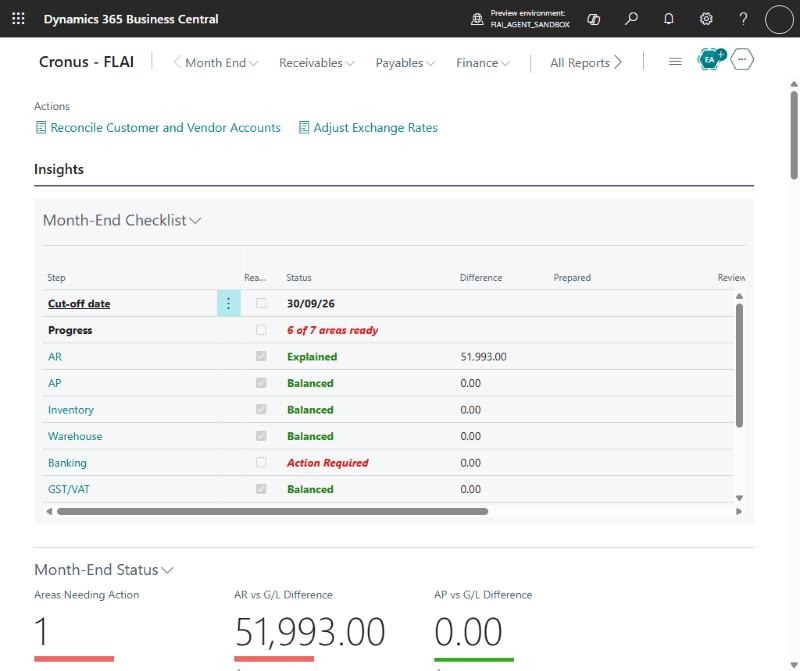
The role centre shows these sections, each across the full page width, in this order:
- Month-End Status: the difference tiles.
- Sales and AR
- Purchase and Payable
- Inventory
- Warehouse
- Banking
- GST/VAT Reconciliation
- General Ledger
- Fixed Assets, Shopify, Projects and Service: optional areas, last. When one is turned off in Month-End Setup its section shows only a one-line message. To remove it from your role centre, choose Personalize and hide it.
- Month-End Checklist: one row per area and close step (section 6.2), at the bottom so every section above it keeps the full page width. To have it at the top instead, set Month-End Checklist Position in Month-End Setup (section 3.1) or choose Month End Process (Checklist on Top) in My Settings.
Each section spans the full page width and opens compact: one row of its most important tiles (up to six), with its status below. The other tiles are in groups below it; to see them, choose Show/Hide Details in the section's menu, and choose it again to fold them away. Sections open compact again the next time the role centre opens.
The role centre sections keep this order. The checklist, Month-End Status and sign-off follow Area Order (section 3.10).
6.2 Month-End Status
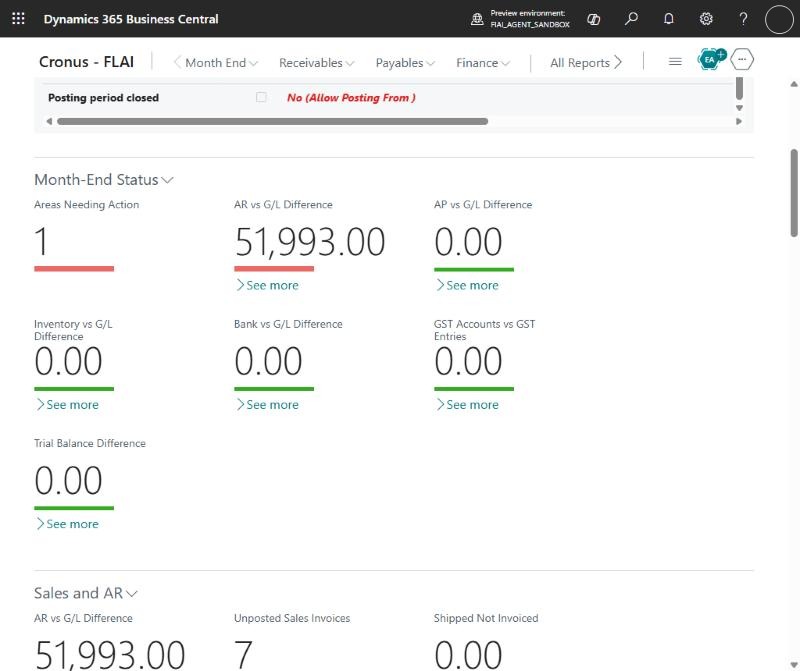
The Month-End Status section shows, as tiles with their full captions:
- how many areas need action;
- each area's difference, in Area Order (section 3.10), and the number of Shopify issues. The Warehouse GRNI vs G/L Difference shows only when Expected Cost Posting to G/L is on, and optional areas only when they are turned on.
Choose a difference to open that area's reconciliation worksheet. Month-End Status updates by itself within a few seconds when a section finishes recalculating, for example after you choose Refresh on that section.
Month-End Checklist
The Month-End Checklist section, at the bottom of the role centre, is a read-only list of the close with a row for each step:
- Cut-off date and Progress, for example 6 of 8 areas ready.
- One row per area that is turned on, in Area Order (section 3.10): Ready (ticked when the area is Balanced or Explained for the current cut-off date), Status, Difference, who Prepared, Reviewed and Approved it on the Month-End Period, and when it was last calculated.
- Month-end reconciliation complete, Month signed off and Posting period closed (with the Allow Posting From date).
You can't tick anything yourself; the rows update by themselves within a few seconds as each section recalculates. Choose an area to open its worksheet, the sign-off rows to open the Month-End Period, or Posting period closed to open General Ledger Setup.
Close Posting Period
When Month End Reconciliation Complete is Yes, choose Close Posting Period on Month-End Status:
- Confirm the message. It shows the new date: the day after the cut-off date.
- Allow Posting From in General Ledger Setup is set to that date, and General Ledger Setup opens so you can check it.
No more entries can then be posted on or before the cut-off date. The app changes only General Ledger Setup, so review user posting windows (User Setup) and Allow FA Posting From in FA Setup yourself. The General Ledger and Fixed Assets sections still flag them. To close the period without being asked, turn on Close Posting Period Automatically in Month-End Setup (section 3.1).
This is the only thing the app changes outside its own setup. It never moves Allow Posting From backwards. If Allow Posting To is before the new date, change Allow Posting To first.
6.3 Month-End Log (audit trail)
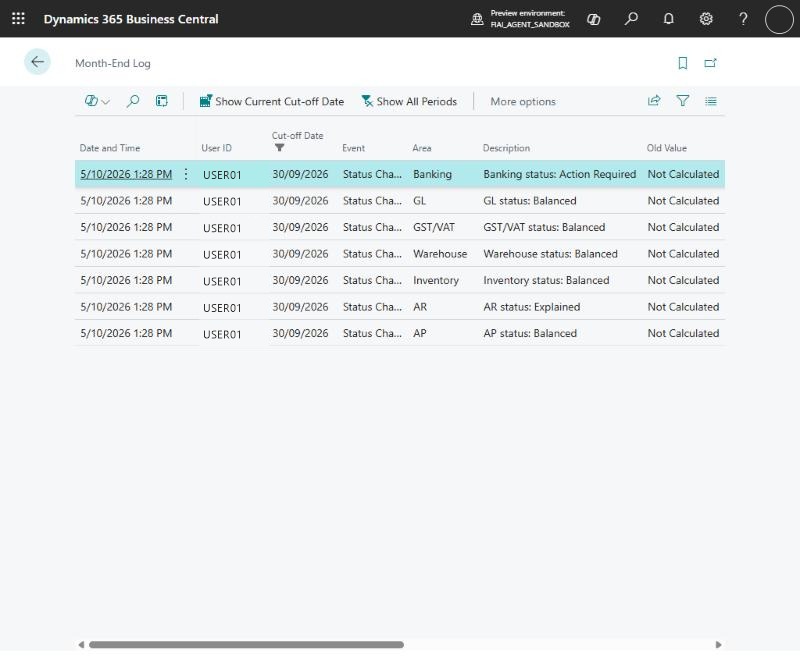
Choose Month-End Log on Month-End Status or in the role centre's Month End menu. It lists, newest first, everything that happened in the month end. It opens on the current cut-off date; choose Show All Periods to see earlier months. Use Open in Excel to give it to your auditors.
| Event | When it is written | Details kept |
|---|---|---|
| Status Changed | An area's status changes, for example from Action Required to Balanced. The first result for a new cut-off date is also logged. Recalculations that don't change the status are not. | Old and new status, the area's difference at that moment. |
| Acknowledged / Acknowledgement Undone | A user acknowledges lines, or undoes an acknowledgement. | Area, category, document, amount, the reason code and the comment, if any. |
| Setup Changed | A Month-End Setup field changes, or a Month-End Account or User Role Center line is added, changed or removed. | Field, old value, new value. |
| Posting Period Closed | Allow Posting From is set by Close Posting Period, manually or automatically. | Old and new Allow Posting From. |
| Starting Point Recaptured | A Starting Point is recaptured (section 3.2). | Area, reason code, comment, and the opening difference before and after. |
| Area Approved | An area is approved on the Month-End Period. | The area. |
| Copilot Text Kept | Copilot text is kept with Keep it (section 6.7). | The area and line, or the month. The prompt and Copilot's answer aren't logged. |
Every entry records the user and the date and time. Nobody can change a log entry, and only an administrator can delete one.
6.4 Month-End Sign-off and Close Pack
Choose Month-End Sign-off on Month-End Status (or in the role centre's Month End menu) to open the Month-End Period for the current cut-off date. It is created the first time, with one line for every area that is turned on.
Sign off each area
- The preparer works through the area (tiles, worksheet, exceptions and acknowledgements). When its Current Status is Balanced or Explained, they choose Mark Prepared and can add a comment.
- A reviewer chooses Mark Reviewed. When Sign-off Steps in Month-End Setup is Prepare - Approve, there is no review step: the action and the Reviewed columns are hidden.
- An approver chooses Mark Approved. The area must be prepared, and reviewed when the review step is used, and still Balanced or Explained.
- Clear Sign-off removes the preparer, reviewer and approver, for example after a correction. It asks for a reason.
Unless Allow Same User is on in Month-End Setup, each step needs a different user: the reviewer can't be the preparer, and the approver can't be either of them. Turn it on when one person does the month end alone.
The Commentary column on the areas holds notes for each area, for example text kept from Explain with Copilot (section 6.7). It prints on the close pack.
Sign off the month
When every area is approved and still Balanced or Explained, choose Sign Off Month. The app saves a snapshot of the month end at that moment:
- each area's status and difference;
- the reconciliation lines (G/L balance, subledger balance, difference and unexplained amount per account and split), and the lines that explain the differences;
- every tile value;
- every acknowledged item with who acknowledged it, when and why;
- the settings used: cut-off rule, tolerance, Reconcile From Date, Include Zero Lines, Expected Cost Posting, the sign-off steps, Allow Same User and the posting window.
Once signed off, the areas can't be changed. Reopen Month asks for a reason, clears the reviews and approvals so each area must be reviewed and approved again (who prepared it stays), and keeps the old snapshot until the month is signed off again. Choose Snapshot to see what was saved.
Reopening also removes the opening this sign-off stored for the next month, so this is how you undo a month end (section 3.2).
Month-End Close Pack
Choose Print Close Pack on the Month-End Period (or run the Month-End Close Pack report and choose the cut-off date). It is a landscape report for your audit file. Print it to PDF, or send it to Excel for your auditors. The company logo from Company Information prints in the header (turn off Show Company Logo to leave it out).
Choose a Detail Level on the request page. It switches the sections below on or off, and you can then change each one:
| Section | Summary | Standard (default) | Detailed |
|---|---|---|---|
| Period: company, cut-off date, sign-off status and comment, last reopen, Close Commentary | Yes | Yes | Yes |
| Settings used | No | Yes | Yes |
| Area status and sign-off: status, difference, preparer, reviewer, approver, comment and Commentary | Yes | Yes | Yes |
| Reconciliation: G/L against subledger, with the opening difference, per account | Account totals | With splits | With splits |
| Reconciliation openings: each area's Starting Point or last month signed off, who captured it, why, and the difference brought forward | Yes | Yes | Yes |
| Differences: each line, with its reason code and comment when acknowledged | No | Yes | Yes |
| Tile values | No | No | Yes |
| Acknowledged by reason code: number of items and amount per reason code, with a total | Yes | Yes | Yes |
| Acknowledged items: area, category, document, comment, reason code, acknowledged by and at, amount | No | Yes | Yes |
| Month-End Log for the cut-off date, with reason codes and comments | No | No | Yes |
Sections are numbered in the order they print. The footer shows who printed it, when, and at which detail level.
For a signed-off month the close pack prints the snapshot, so a reprint always shows the signed-off numbers even after later postings. Before sign-off it prints a DRAFT from the current figures. Printing is recorded in the Month-End Log.
To stop the posting period being closed before sign-off, turn on Require Sign-off to Close Period in Month-End Setup.
6.5 Calculation, caching and Refresh
Tiles are calculated in the background when the role centre opens, so the page stays responsive. Results are cached for the Cache Minutes set in Month-End Setup. Each section shows when it was last calculated. Choose Refresh on a section to recalculate it immediately, for example after posting corrections or acknowledging lines.
6.6 Role centre menu
| Group | Actions |
|---|---|
| Month End | AR Recon Worksheet, AP Recon Worksheet, Inventory Recon Worksheet, GRNI vs G/L, Bank Recon Worksheet, FA Recon Worksheet, Project WIP Recon Worksheet, Service Prepaid Recon Worksheet, Shopify Close Issues, Month-End Sign-off, Month-End Close Pack, Month-End Log, GL Close Issues, Month-End Accounts, Month-End Setup, Accounting Periods |
| Receivables | Sales Invoices, Sales Credit Memos, Sales Orders, Cash Receipt Journals, Customers, Reminders, Finance Charge Memos |
| Payables | Purchase Invoices, Purchase Credit Memos, Purchase Orders, Payment Journals, Vendors, Incoming Documents |
| Finance | Chart of Accounts, General Journals, Inventory - G/L Reconciliation, Bank Account Reconciliations, Reconcile Customer and Vendor Accounts, Adjust Exchange Rates |
6.7 Copilot: explain a difference and draft the close commentary
When Copilot is turned on (section 3.11), two actions with the Copilot icon appear. Neither calculates anything: Copilot only puts into words the figures the app has already worked out, and nothing it writes is kept until you choose Keep it. AI-generated content may be incorrect, so check it before keeping it.
Explain with Copilot
On a reconciliation worksheet, select a line and choose Explain with Copilot, then Generate. Copilot explains the line's movement since the opening, what explains it (the largest items, with their document numbers and dates), what is still unexplained, and up to three next steps in standard Business Central pages for you to run.
Choose Regenerate for another version, or Discard. Keep it adds the text to the area's Commentary on the Month-End Period. It isn't allowed once the month is signed off.
Draft Commentary with Copilot
On the Month-End Period, choose Draft Commentary with Copilot. Copilot drafts the month's Close Commentary under the headings Summary, Areas, Acknowledged differences, Open items and Change since last month. It uses the areas in Area Order, the acknowledgements by reason code and the previous signed-off month. Keep it replaces the Close Commentary, which you can still edit while the month is open.
Both commentaries print on the close pack. Keeping Copilot text is recorded in the Month-End Log as Copilot Text Kept; the prompt and the answer aren't logged. With Send Names to Copilot off (the default), Copilot doesn't see descriptions or comments (section 3.11).
7. Drill-downs, acknowledgements and worksheets
7.1 Month-End Detail
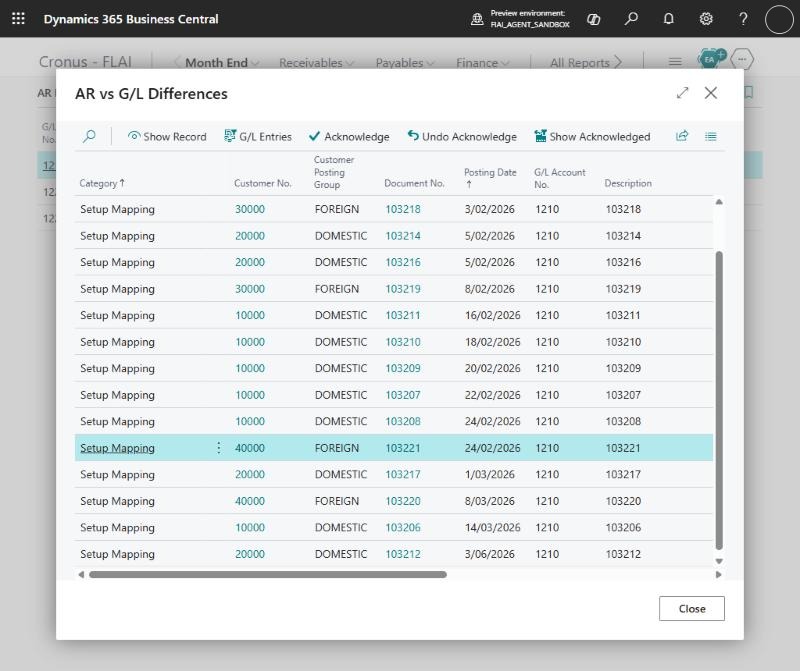
Choosing a calculated tile opens the Month-End Detail list, which shows exactly the lines behind the tile value. Tiles that are simple filters on standard data (for example unposted sales invoices) open the standard Business Central list instead.
| Action | What it does |
|---|---|
| Show Record | Opens the source record of the line. A customer, vendor or bank account ledger entry opens that customer's, vendor's or bank's ledger entries with this entry selected, showing only open entries when the entry is open, so you can use Apply Entries straight away. Item and FA ledger entries open that item's or asset's entries. Documents and journal lines open their own page. |
| Code column | The first code column (customer, vendor, bank account, item, asset, project or G/L account) is a link: choose it to open the card. Codes that aren't one of those, such as a posting group, open nothing. |
| G/L Entries | Opens all G/L entries of the line's transaction, so you can see both sides of the posting. |
| Acknowledge | Marks the selected lines as reviewed and expected. Choose a Reason Code (required; the standard Reason Codes list, prefilled from Default Acknowledgement Reason Code in Month-End Setup) and optionally add a Comment. The lines drop out of the tile and this list, and the acknowledgement, reason code and comment are written to the Month-End Log. |
| Undo Acknowledge | Removes the acknowledgement from the selected lines, so they count again. Choose a reason code and optionally add a comment; both are written to the Month-End Log. Choose Show Acknowledged first to see them. |
| Show Acknowledged / Hide Acknowledged | Shows or hides the acknowledged lines. Acknowledged lines show the reason code and comment; who acknowledged them and when can be added from the column list. |
7.2 How long an acknowledgement lasts
| What you acknowledge | Lasts | Why |
|---|---|---|
| A posted ledger entry: G/L, customer, vendor, bank, value, item, FA, project or service ledger entry. Also Shopify order transactions, payment transactions and refunds, which don't change once created. | This and every later cut-off date, until you undo it | Posted entries don't change. Legacy items, for example go-live value entries, then stay out of the tiles every month. |
| Anything else: a customer, vendor, bank account, item, asset, project, document or journal line flagged for a condition | The current cut-off date only | The condition, for example "bank not reconciled" or "customer overdue", is checked again each month, so a new problem is not hidden. |
Example: go-live stock take. At go-live, 999+ value entries were not posted to G/L because the stock value was journaled directly.
- Open Value Entries Not Posted to G/L.
- Select all lines and choose Acknowledge.
- Choose Refresh on the Inventory section.
The tile drops to 0 and stays at 0 in later months. In the Inventory Recon Worksheet the acknowledged share is shown on separate Acknowledged: lines, so it still offsets the go-live journal on the same account. Alternatively, set a Starting Point (section 3.2) to leave all go-live entries out of the reconciliation.
7.3 Reconciliation worksheets
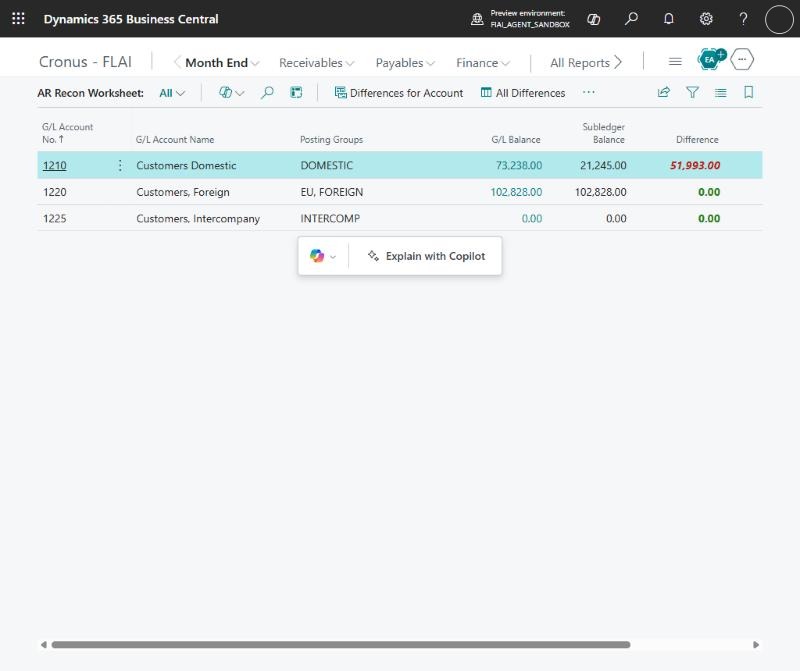
Each subledger has a reconciliation worksheet. Open it from the role centre menu, from the area's status or difference tile, or from Month-End Status.
Account lines (no code in the first column) compare one G/L control account with the subledger:
| Column | Meaning |
|---|---|
| G/L Balance | Balance of the G/L account at the cut-off date. |
| Subledger Balance | Customer, vendor, bank, inventory, FA, WIP or prepaid balance mapped to the account. |
| Opening Difference | With a Starting Point: the difference at the opening (the Starting Point or the last month signed off), next to Opening G/L Balance and Opening Subledger Balance. Choose it to see the openings. |
| Movement | With a Starting Point: Difference minus Opening Difference, the change since the opening. G/L Movement and Subledger Movement show each side's change. |
| Difference | G/L Balance minus Subledger Balance. Its colour follows the Movement, so a difference that is only the opening difference isn't shown in red. |
| Explained | The part of the movement covered by identified or acknowledged items. |
| Unexplained | What is left of the movement after Explained. Explained items only move it towards zero: if they are larger than the movement or have the opposite sign, Unexplained is 0 or the whole movement, as on the tile. This is what needs investigating. |
The lines below an account line split its subledger balance by customer or vendor posting group, bank account, inventory posting group, FA posting group and type, and so on.
On the Bank Recon Worksheet the Bank Account No. comes first, then the G/L account and the balances (section 8.6).
| Worksheet action | What it does |
|---|---|
| Differences for Line | Opens Month-End Detail with the items that explain the selected account's difference. |
| All Differences | Opens Month-End Detail with the items for all accounts. |
| Acknowledge Differences | Acknowledges every difference on the selected lines that isn't acknowledged yet, in one go, with one reason code and an optional comment. The dialog shows how many items and the total. Acknowledged G/L and ledger entries stay acknowledged at later cut-off dates, so legacy items such as go-live postings (use ME-LEGACY) don't come back each month. Statement differences can't be acknowledged. |
| Undo Acknowledge | Removes the acknowledgement from every acknowledged difference on the selected lines. |
| Acknowledge Remaining Difference | Once you have investigated a G/L account, acknowledges what its items don't explain (Movement minus Explained, over all its lines) as one amount, with a reason code and comment. The dialog shows the working. It applies to this cut-off date only, so next month the difference is checked again. It shows in Differences for Line as Acknowledged Remaining Difference, where you can undo it. |
| Starting Point | Opens this area's Reconciliation Openings, to set, change, recapture or remove its Starting Point (section 3.2). |
| Explain with Copilot | Explains the selected line in words (section 6.7). Shown only when Copilot is turned on. |
| G/L Entries | Opens the G/L entries of the selected account up to the cut-off date, from the day after the go-live when a Starting Point is set. |
| Refresh | Recalculates the worksheet. |
7.4 Difference categories
| Category | Meaning | Typical fix |
|---|---|---|
| Manual G/L Posting | A G/L entry on a control account with no matching subledger entry, for example a general journal posted straight to the receivables account. Listed one line per G/L entry. | Reverse it and repost against the customer, vendor, bank and so on, or acknowledge it if intended. |
| Date Mismatch | The subledger entry and the G/L entry of a transaction are on different sides of the cut-off date. | Usually resolves itself next month. Check the posting dates. |
| Posting Group Change | A subledger entry whose posting group is no longer the customer's or vendor's current group, and whose G/L went to another account. | Informational. Check the posting group history. |
| Setup Mapping | A subledger entry whose G/L went to an account that isn't a control account now, usually because a posting group's account was changed. Also used when a posting setup has no account. | Correct the posting setup, or reclassify the balance. |
| Not Posted to G/L | Stock, WIP or FA cost in the subledger not yet posted to the G/L. | Run Post Inventory Cost to G/L, or the FA G/L journal. |
| FA Entry Posted Without G/L | An FA ledger entry in a G/L-integrated book with no G/L entry. | Correct it through the FA G/L Journal. |
| Unexplained | Both sides exist but the amounts differ. | Investigate with G/L Entries and Show Record. |
| Opening Difference (Brought Forward) | Older snapshots only. The opening difference is now shown in the Opening columns of the worksheet (section 7.3), not as a line. | None. |
| Prior Period Changed | A posting dated on or before the opening, made after it was captured, changed the opening difference. | Find the back-dated posting; correct it, or acknowledge the remaining difference. |
| Opening Difference Corrected | A manual G/L posting after the opening that reverses a line's opening difference exactly, for example a journal correcting a go-live difference. | Check it, then acknowledge it like a manual posting. |
| Acknowledged Remaining Difference | What an account's items didn't explain, acknowledged for this cut-off date. | Undo it here if needed. |
8. Area reference
This chapter lists every tile by area, what it means and what to do about it. Unless stated otherwise, dates are "on or before the cut-off date".
8.1 General Ledger
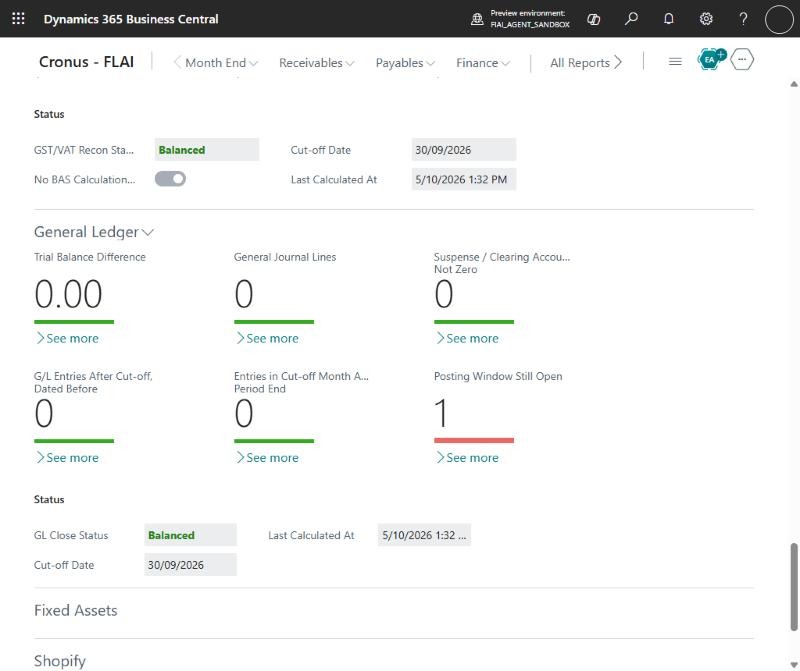
Section: General Ledger. Close issues: GL Close Issues. Setup: Month-End Accounts (section 3.9).
| Tile | What it means | What to do |
|---|---|---|
| Trial Balance Difference | Sum of all G/L entries up to the cut-off. It must be 0. | Contact support if it isn't. The drill-down shows the G/L registers of the month. |
| G/L Entries After Cut-off, Dated Before | Entries posted after the cut-off with a document date on or before it. | Check that each is in the right period. |
| Entries in Cut-off Month After Period End | Entries dated in the cut-off month but created after the month ended (late postings). | Review late postings. |
| General / Recurring / Allocation / Other Journal Lines, Journals Pending Approval | Unposted journal lines up to the cut-off. | Post or delete them. Run the recurring journal for the period. |
| Open Accounting Periods | Periods up to the cut-off that aren't closed. Informational. | Close them at year end if that's your practice. |
| Posting Window Still Open | General Ledger Setup or user setups that can still post on or before the cut-off. | Move Allow Posting From past the cut-off after the close. |
| Control Accounts Allowing Direct Posting | Receivables, payables, bank, FA, inventory, WIP or prepaid accounts with Direct Posting on. | Turn off Direct Posting in the Chart of Accounts. |
| Manual Postings to Control Accounts | Manual postings this month to any control account. | Review and reverse, or acknowledge. |
| Suspense / Clearing Accounts Not Zero, Suspense / Clearing Balance | Month-End Accounts not at their expected balance. | Clear the account. |
| Currencies Not Revalued / Exchange Rates Missing | Currencies in use not adjusted to the cut-off, or with no exchange rate in the last 31 days. | Enter the rates, then run Adjust Exchange Rates. |
| Deferral Balance Difference / Unposted Documents with Deferrals | Deferral accounts that don't match the deferrals still to recognise, and unposted documents with a deferral code. | Look for manual postings to the deferral account. Post the documents. |
| IC Inbox / Outbox / IC Journal Lines | Pending intercompany transactions. Shown only when intercompany partners exist. | Process them. |
GL Close Status is Balanced (ready to close) or Action Required. It is Action Required if any of these apply:
- the trial balance is out;
- general or recurring journal lines are pending;
- a Month-End Account is off its expected balance;
- a currency isn't revalued;
- the deferral difference exceeds the tolerance.
8.2 Receivables (AR)
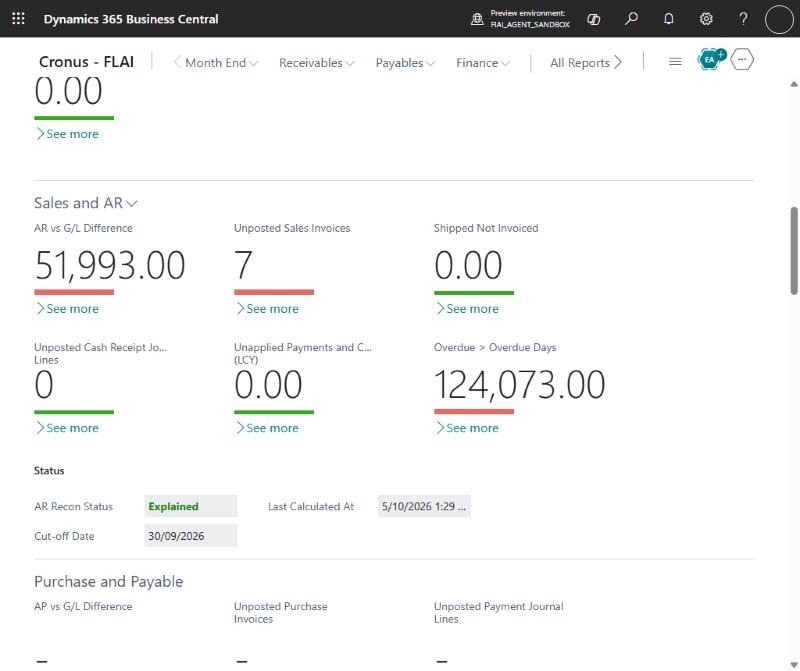
Section: Sales and AR. Worksheet: AR Recon Worksheet. Setup: AR Overdue Days, AR Unapplied Days.
| Tile | What it means | What to do |
|---|---|---|
| AR vs G/L Difference | Receivables Accounts balance minus the customer ledger balance at the cut-off. Acknowledged amounts are left out. Should be 0. | Open the worksheet and work through the categories (section 7.4). |
| Manual Postings to Receivables Accounts | G/L entries in the cut-off month on a Receivables Account that did not come from a customer. | Reverse and repost against the customer, or acknowledge. |
| Receivables Accounts Allowing Direct Posting | Receivables Accounts with Direct Posting on. | Turn off Direct Posting unless needed. |
| Customers Posted with Alternate Posting Groups | Customer ledger entries whose posting group isn't the customer's current one. | Informational. Explains differences per account. |
| Unposted Sales Invoices / Credit Memos | Sales documents not yet posted. | Post them, or move them to the next period. |
| Shipped Not Invoiced | Sales order lines shipped but not invoiced, in LCY excluding GST. | Invoice, or accrue the revenue. |
| Return Receipts Not Credited | Return order lines received but not credited. | Post the credit memos, or accrue. |
| Sales Documents Pending Approval / Sales Posting Errors | Documents waiting for approval, and background postings that failed. | Chase the approvers. Fix the errors and post. |
| Prepayment Invoices Due | Sales orders with a prepayment due on or before the cut-off that isn't fully invoiced. | Post the prepayment invoices. |
| Unposted Cash Receipt Journal Lines | Cash receipt journal lines up to the cut-off. | Post or delete them. |
| Unposted Payment Reconciliation Journals | Payment reconciliation journals with lines matched to customers. | Post them. |
| Unapplied Payments and Credits | Customer payments, credit memos and refunds still open, posted more than AR Unapplied Days before the cut-off. | Apply them, or refund the customer. |
| Customers with Credit Balance | Customers whose balance is a credit. | Apply the credits, refund, or reclassify. |
| Overdue | Open balance due more than AR Overdue Days before the cut-off. | Follow up collections, and consider a bad-debt provision. |
| Blocked Customers with Balance | Blocked customers that still have a balance. | Collect or write off the balance. |
| Unissued Reminders / Finance Charge Memos | Not issued. Issuing them posts interest and fees. | Issue or delete them before closing. |
| Foreign-Currency AR Not Revalued | Open foreign-currency balance in currencies last adjusted before the cut-off. | Run Adjust Exchange Rates for the cut-off date. |
8.3 Payables (AP)
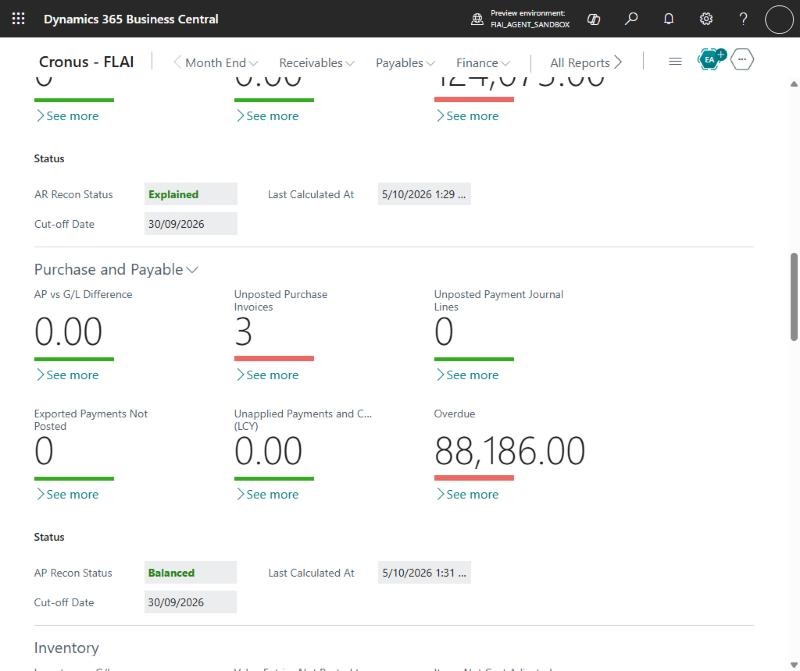
Section: Purchase and Payable. Worksheet: AP Recon Worksheet. Setup: AP Unapplied Days.
Goods received not invoiced (GRNI), GRNI Not Accrued and Return Shipments Not Credited are in the Warehouse section (see 8.5). Purchase and Payable keeps the financial tiles.
The AP vs G/L tile and the worksheet show ledger balances as posted, so amounts owed to vendors are negative there. The due, overdue and foreign-currency tiles show amounts owed as positive.
| Tile | What it means | What to do |
|---|---|---|
| AP vs G/L Difference | Payables Accounts balance minus the vendor ledger balance at the cut-off. Acknowledged amounts are left out. | Open the worksheet (same categories as AR). |
| Manual Postings to Payables Accounts | G/L entries in the cut-off month on a Payables Account not from a vendor. | Reverse and repost against the vendor, or acknowledge. |
| Payables Accounts Allowing Direct Posting | Payables Accounts with Direct Posting on. | Turn off Direct Posting. |
| Vendors Posted with Alternate Posting Groups | Vendor ledger entries whose posting group isn't the vendor's current one. | Informational. |
| Unposted Purchase Invoices / Credit Memos | Purchase documents not yet posted. | Post them, or move them to the next period. |
| Purchase Documents Pending Approval / Purchase Posting Errors | Waiting for approval, or failed background posting. | Chase the approvers. Fix the errors and post. |
| Incoming Documents Not Processed | Incoming documents that are new, released or pending approval, and not posted. | Create and post the documents. |
| Prepayments Not Applied | Invoiced prepayments not yet deducted by a final invoice. | Post the final invoice. |
| Unposted Payment Journal Lines | Payment journal lines up to the cut-off. | Post or delete them. |
| Exported Payments Not Posted | Lines exported to a payment file but not posted. The money has left the bank. | Post them now. |
| Unapplied Payments and Credits | Vendor payments and credit memos still open, posted more than AP Unapplied Days before the cut-off. | Apply them to invoices. |
| Vendors with Debit Balance | Vendors who owe you at the cut-off. | Apply credits, request refunds, or reclassify. |
| Due Within 7 Days / Overdue | Amounts owed falling due in the next 7 days, and amounts already due. | Cash planning. Pay, or check for disputes. |
| Blocked Vendors with Balance | Blocked vendors with a balance. | Settle or clear the balance. |
| Foreign-Currency AP Not Revalued | Open foreign-currency amounts in currencies last adjusted before the cut-off. | Run Adjust Exchange Rates. |
8.4 Inventory
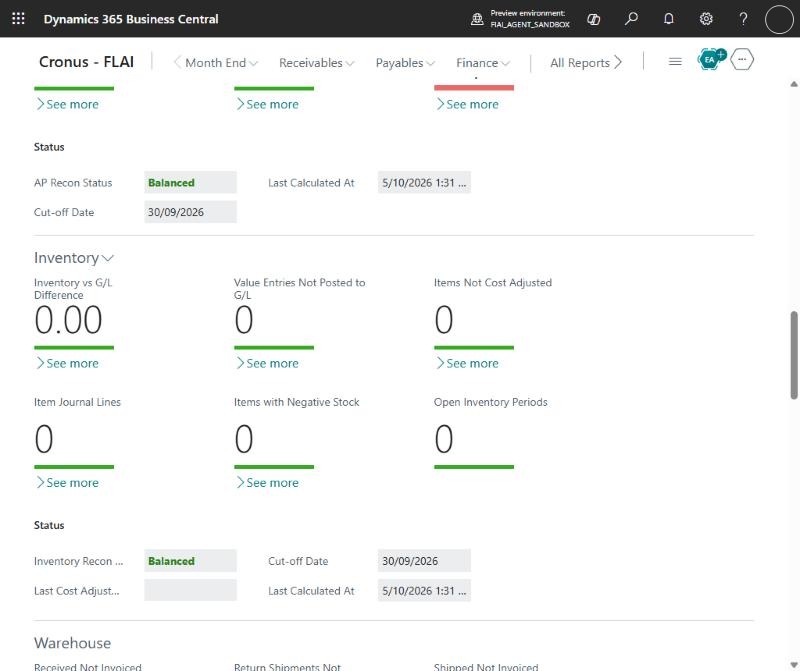
Section: Inventory (called Stock before D-036). Worksheet: Inventory Recon Worksheet, with one line per inventory, interim and WIP account. Setup: Stale WIP Days.
| Tile | What it means | What to do |
|---|---|---|
| Inventory vs G/L Difference | Inventory, interim and WIP accounts minus the inventory subledger at the cut-off. Acknowledged amounts are left out. | Open the worksheet. Differences are explained as Not Posted to G/L, Setup Mapping or Manual G/L Posting. |
| Value Entries Not Posted to G/L | Value entries waiting for Post Inventory Cost to G/L, not counting acknowledged entries. | Run Post Inventory Cost to G/L from the section, or acknowledge legacy entries. |
| Amount Not Posted to G/L | Cost in the subledger not yet in the G/L, less acknowledged entries. | Post inventory cost to G/L. |
| Items Not Cost Adjusted | Items with unadjusted cost entries. | Run Adjust Cost - Item Entries from the section. |
| Manual Postings to Inventory Accounts | G/L entries in the cut-off month on inventory accounts not from an inventory source code. Listed per G/L entry. | Review and reverse, or acknowledge. |
| Cost Jobs in Error / Last Cost Adjustment Run | Adjust Cost or Post Inventory Cost job queue entries in error, and the last successful adjustment. | Fix the job queue entry. The last run should be on or after the cut-off. |
| Unposted journals and open documents | Item, revaluation, physical inventory and output/consumption journals. Item charges not fully invoiced, and open assembly and production orders. | Post or clear what belongs in the period. |
| Production WIP | Orders ready to finish, stale WIP orders (Stale WIP Days) and WIP left on finished orders. | Finish orders, and post output or consumption. |
| Negative Stock / Zero Quantity with Value | Quantity problems at the cut-off. The warehouse quantity checks are in the Warehouse section. | Correct the stock before the cost is final. |
8.5 Warehouse
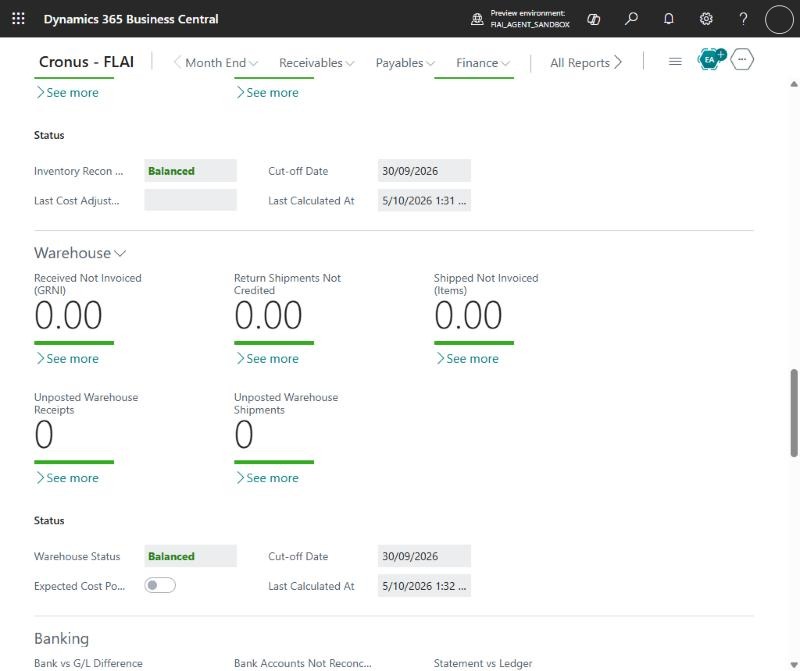
Section: Warehouse. Setup: GRNI Accrual Account. The section brings together goods received or shipped but not invoiced and the warehouse checks, which used to be in Purchase and Payable and Stock.
| Tile | What it means | What to do |
|---|---|---|
| GRNI vs G/L Difference | Shown only when Expected Cost Posting to G/L is on in Inventory Setup. Each open item receipt (GRNI excluding GST, LCY), and each item return shipment not credited, is matched to the Invt. Accrual Acc. (Interim) G/L entries posted for that same receipt or shipment. Lines that match are left out, so the drill-down lists only what doesn't match: receipts with no accrual (Expected Cost Not Posted to G/L, for example received before expected cost posting was turned on), receipts whose accrual differs, manual postings to the accrual account, and accrual left for receipt lines no longer open: one line per receipt line, with its item and location, which you can open with Accrued in G/L and acknowledge. Receipts up to the go-live (the earliest Starting Point) are left out on both sides. Acknowledged amounts are left out of the tile. The drill-down shows GRNI (Order), Accrued in G/L and Difference side by side. The description gives the order and accrued unit costs, so a price changed after receipt is easy to spot. Choose Accrued in G/L to open the G/L entries behind it, or GRNI (Order) to open the purchase line. | For a price changed after receipt, the difference clears when the invoice is posted; acknowledge it with ME-TIMING until then. Run Post Inventory Cost to G/L if expected cost isn't posted yet. Reverse manual postings to the accrual account. For receipts from before expected cost posting was turned on, set a Starting Point or acknowledge them. |
| Received Not Invoiced (GRNI) | Total Amt. Rcd. Not Invoiced (LCY) of purchase order lines with a quantity received and not yet invoiced, including partly invoiced lines. Foreign-currency orders are converted to LCY with the currency factor on the order. The drill-down lists only these lines, with Quantity, Quantity Received, Quantity Invoiced, Qty. Rcd. Not Invoiced, Currency Code, Currency Factor, Direct Unit Cost, Amt. Rcd. Not Invoiced and Amt. Rcd. Not Invoiced (LCY). Its LCY total at the bottom matches the tile. Show Document opens the purchase order. This is the accrual base. | Chase the invoices, or accrue. |
| Return Shipments Not Credited | Purchase return lines shipped but not credited. | Get the credit memos and post them. |
| GRNI Not Accrued | Shown when a GRNI Accrual Account is set and expected cost is not posted to the G/L (or non-item lines are received). The received-not-invoiced amount not covered by expected cost, minus the accrual account's credit balance. Positive means under-accrued. | Post an accrual for the difference in a general journal. |
| Shipped Not Invoiced (Items) / Sales Returns Received Not Invoiced | Item lines on sales orders shipped but not invoiced, and on sales return orders received but not credited. | Invoice or credit them in the period. |
| Transfers In Transit | Transfer lines shipped but not received. | Receive the transfers. |
| Warehouse Documents | Unregistered picks, put-aways and movements, unposted warehouse receipts and shipments, and warehouse journal lines up to the cut-off. | Register or post what belongs in the period. |
| Warehouse Adjustments Not Synced / Warehouse vs Item Ledger Mismatch | Quantity left in adjustment bins, and bin-mandatory locations where warehouse and item ledger quantities differ. | Run Calculate Warehouse Adjustment and post it. Investigate mismatches. |
| Warehouse Status | Balanced, Explained or Action Required for GRNI vs G/L. Always Balanced when expected cost isn't posted to the G/L. | Counts towards Month End Reconciliation Complete. |
8.6 Banking
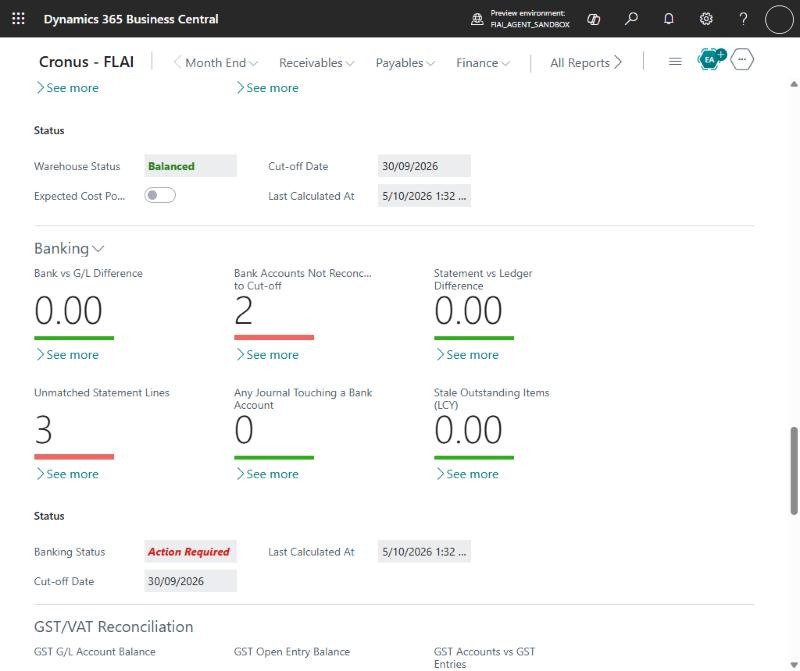
Section: Banking. Worksheet: Bank Recon Worksheet, with one line per bank account on the Bank Accounts list, blocked ones included. The worksheet starts from the bank account: the Bank Account No. comes first and opens the Bank Account Card, then the G/L account from the bank's current posting group, its name and the balances. The bank ledger balance (LCY) counts the bank's entries under every posting group it has used. It also shows the last statement date, ending balance, ledger balance at that date and items outstanding at that date. When one bank uses a G/L account, its G/L balance is the account's balance. When several banks share one G/L account, each bank after the first keeps its own differences, and the first bank on the account (in Bank Accounts list order) takes the rest, including differences not tied to a bank such as manual journals. Setup: Stale Outstanding Days.
If a Banking Starting Point was set with a version before 1.0.0.13, choose Recapture Starting Point for Banking once (section 3.2), because its openings were split by transaction.
| Tile | What it means | What to do |
|---|---|---|
| Bank vs G/L Difference | Bank G/L accounts minus the bank ledger (LCY), matched transaction by transaction. | Open the worksheet and fix or acknowledge each difference. |
| Bank Accounts Not Reconciled to Cut-off | Active bank accounts whose last posted statement is before the cut-off, or that have no statement. | Post a bank reconciliation to the cut-off. |
| Statement vs Ledger Difference | Last statement ending balance vs ledger balance at the statement date less items outstanding at that date. Should be 0. | Check the last posted reconciliation. |
| Manual Postings / Direct Posting | G/L entries on bank G/L accounts with no bank ledger entry, and bank accounts allowing direct posting. | Review, reverse, or turn off Direct Posting. |
| Open Bank Reconciliations / Payment Reconciliation Journals / Unmatched Statement Lines | Reconciliations that are open or not fully applied. | Finish and post them. |
| Stale Outstanding Items / Outstanding Deposits / Outstanding Payments | Open bank ledger entries up to the cut-off, and those older than Stale Outstanding Days. | Follow up the old items. |
| Journals Touching a Bank Account / Cheques Printed Not Posted / Exported Payments Not Posted | Money movements not yet in the ledger. | Post or void them. |
| Foreign-Currency Banks Not Revalued | Bank accounts whose currency was last adjusted before the cut-off. | Run Adjust Exchange Rates. |
8.7 GST/VAT Reconciliation
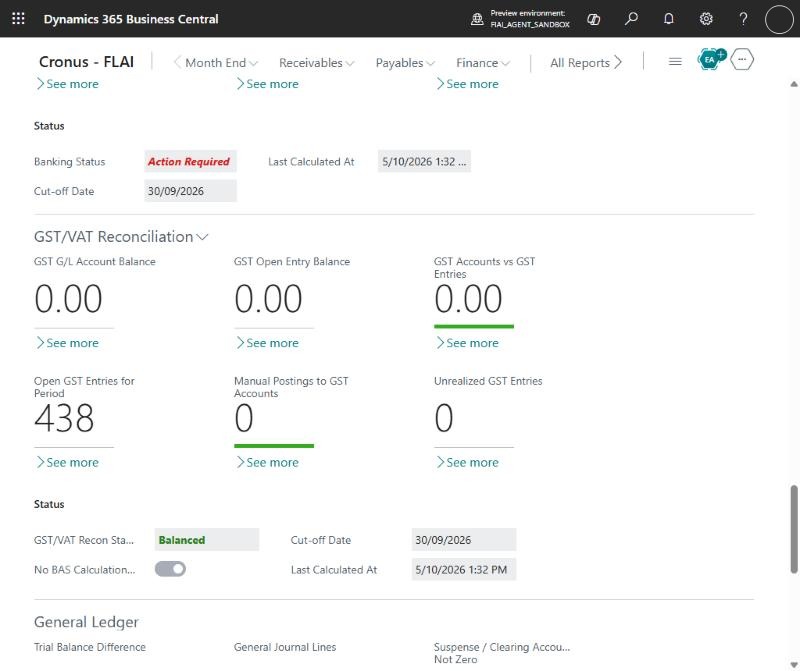
Section: GST/VAT Reconciliation. The GST tiles moved here from General Ledger. The GST/VAT accounts are the Sales and Purchase VAT accounts in VAT Posting Setup.
| Tile | What it means | What to do |
|---|---|---|
| GST G/L Account Balance | Total G/L balance at the cut-off of the sales and purchase GST/VAT accounts in VAT Posting Setup. The drill-down lists every account with its G/L balance, open GST entries and difference. | Information. Compare with GST Open Entry Balance. |
| GST Open Entry Balance | Total GST/VAT amount (not base) of all open (not settled) sales and purchase GST/VAT entries up to the cut-off. G/L balance minus this amount is the net difference. The drill-down opens the open GST/VAT entries; total their Amount column to agree it. | Information. If it doesn't match the G/L balance, open GST Accounts vs GST Entries. |
| GST Clearing Account Balance (details) | G/L balance at the cut-off of the GST Clearing Accounts set in Month-End Setup, for example the account GST settlements post to. Settled GST waiting to be paid or refunded. It is not compared with GST/VAT entries, because settled entries are closed. | Information. Check it agrees with the BAS amount payable or refundable. |
| GST Accounts vs GST Entries | Per GST/VAT account, the G/L balance at the cut-off minus the open GST/VAT entries that post to it, summed as absolute amounts. Open GST/VAT entries whose VAT Posting Setup has no sales or purchase GST/VAT account, or which have no VAT Posting Setup, are listed as GST/VAT Entries with No GST/VAT Account and count as a difference. Acknowledged differences are left out. Unrealized GST accounts are not compared. | Open the drill-down. Look for manual postings and settlements not posted. |
| Open GST Entries for Period | GST/VAT entries up to the cut-off not closed by a settlement. | Informational until you run Calculate and Post GST/VAT Settlement from the section. |
| Manual Postings to GST Accounts | G/L entries in the cut-off month on a GST/VAT account whose transaction has no GST/VAT entry, so they are not in the return. Listed per G/L entry. | Reverse and repost with the right VAT posting groups, or acknowledge with a reason. |
| GST Accounts Allowing Direct Posting | GST/VAT accounts with Direct Posting on. | Turn off Direct Posting. |
| Unrealized GST Entries | GST/VAT entries up to the cut-off with unrealized GST still to be realized by payment. | Informational for cash-basis GST. |
| No BAS Calculation Sheet for Cut-off / GST/VAT Recon Status | Whether a BAS calculation sheet covers the cut-off; and Balanced, Explained or Action Required for the accounts against the entries. | Prepare the BAS when due. The status counts towards Month End Reconciliation Complete. |
8.8 Fixed Assets (optional)
Section: Fixed Assets. Worksheet: FA Recon Worksheet, with one line per FA G/L account, split by FA posting group and posting type. Only depreciation books and posting types with G/L integration are reconciled.
| Tile | What it means | What to do |
|---|---|---|
| FA vs G/L Difference | Sum of the absolute difference per FA G/L account at the cut-off, less acknowledged amounts. | Open the worksheet (FA Entry Posted Without G/L, Manual G/L Posting, Setup Mapping). |
| Assets Not Depreciated to Cut-off | Active assets with a book value not depreciated up to the cut-off. | Run Calculate Depreciation, then post the FA G/L journal. |
| FA Entries Posted Without G/L | FA entries in an integrated book with no G/L entry. | Correct them through the FA G/L Journal. |
| Manual Postings / Direct Posting | G/L entries on FA accounts with no FA entry, and FA accounts allowing direct posting. | Review, reverse, or turn off Direct Posting. |
| Unposted FA journals and documents | FA G/L, FA and reclassification journals, depreciation lines, and purchase and sales documents with FA lines. | Post them in the period. |
| Asset integrity | Disposed assets with book value, negative book value, fully depreciated active assets, missing posting group, and acquired without depreciation setup. | Correct the asset setup. |
| Assets Under Construction Balance | Acquisition cost of assets in the AUC subclass (when set). | Capitalise completed assets. |
| FA Posting Allowed on or Before Cut-off | FA Setup still allows posting into the closed period. | Move Allow FA Posting From forward. |
8.9 Projects (optional)
Section: Projects. Worksheet: Project WIP Recon Worksheet, with one line per WIP account from the Project Posting Groups. Setup: Enable Projects, Unbilled Days.
| Tile | What it means | What to do |
|---|---|---|
| Project WIP vs G/L Difference | WIP account balances minus the posted, unreversed project WIP G/L entries. | Open the worksheet. Manual postings are listed per G/L entry. |
| Manual Postings to WIP Accounts | G/L entries in the cut-off month on WIP accounts from other source codes. | Review and reverse, or acknowledge. |
| Open Projects Without WIP for Period | Open projects with a WIP method whose WIP posting date is before the cut-off. | Run Project Calculate WIP to the cut-off. |
| WIP Calculated Not Posted | WIP calculated but not posted to G/L. | Run Project Post WIP to G/L. |
| Projects with WIP Warnings / Completed Projects with WIP Balance | WIP warnings, and completed projects still carrying WIP. | Fix the warnings, then recalculate and post WIP. |
| Unposted usage | Project journals, time sheet lines, purchases received not invoiced, and general journal lines for projects. | Post them in the period. |
| Billing | Billable lines older than Unbilled Days not on an invoice, invoices created not posted, and projects over budget. | Create and post invoices, and review the budgets. |
8.10 Service (optional)
Section: Service. Worksheet: Service Prepaid Recon Worksheet, with one line per prepaid contract account. Setup: Enable Service, Stale Order Days. The Service prepaid reconciliation always uses all entries; Reconcile From Date doesn't apply.
| Tile | What it means | What to do |
|---|---|---|
| Prepaid Contract vs G/L Difference | Prepaid contract account balances minus the prepaid service ledger entries not yet moved to income. | Open the worksheet. |
| Prepaid Entries Due to Move | Prepaid entries dated on or before the cut-off not yet moved. | Run Post Prepaid Contract Entries. |
| Manual Postings to Prepaid Accounts | G/L entries in the cut-off month on prepaid accounts from other source codes. | Review and reverse, or acknowledge. |
| Contracts Due for Invoicing / Contract Invoices Not Posted | Signed contracts with a next invoice date on or before the cut-off, and contract invoices not posted. | Run Create Contract Invoices, then post them. |
| Contracts Expiring Next Month / Contracts with Unposted Changes | Contracts expiring next month, and contracts left open for changes. | Renew them, or lock them. |
| Service orders and documents | Shipped not invoiced, finished not posted, stale open orders (Stale Order Days), unposted invoices and credit memos, and quantities to consume. | Invoice, post or close them. |
8.11 Shopify (optional)
Section: Shopify. Close issues: Shopify Close Issues, opened from the status, the section or the role centre menu. Setup: Enable Shopify, Shopify Sync Stale Hours (section 3.7). The section runs only when at least one Shopify shop is enabled.
These checks confirm that everything that happened in Shopify up to the cut-off date has reached Business Central: orders as sales documents and invoices, refunds as credit memos, and customers, companies and products as mapped records. They also cover payments, payouts and gift cards. Amounts are in the shop, payout or transaction currency, not LCY.
Orders
| Tile | What it means | What to do |
|---|---|---|
| Orders with Errors | Orders created up to the cut-off date whose sales document couldn't be created (for example a missing item or customer mapping), or whose order state couldn't be updated in Shopify. The error message is shown on each line. | Open the order with Show Record, fix the cause and process it again. |
| Orders Not Processed | Imported orders (not test orders, not cancelled) created up to the cut-off date that have no sales document yet. | Process them so the sales are in the period. |
| Orders Waiting to Import | Orders listed in Shopify Orders to Import but not imported yet, including ones that failed to import. | Import them, or run the order synchronization. |
| Processed Orders Not Invoiced | Sales orders created from Shopify orders, dated up to the cut-off date, that still exist, so the sale isn't fully invoiced. Lines open the sales order. | Ship and invoice them, or accrue the revenue. |
| Orders Not Fully Paid | Orders with financial status Pending, Authorized or Partially Paid. | Capture the payment in Shopify, or follow up the customer. |
Returns and refunds
| Tile | What it means | What to do |
|---|---|---|
| Refunds with Errors | Refunds created up to the cut-off date whose credit memo creation failed. The error is shown on each line. | Fix the error and create the credit memo. |
| Refunds Without Credit Memo | Refunds with no credit memo in Business Central, so the refund isn't in the G/L. | Create the credit memo from the refund. |
| Open Returns | Returns with status Requested or Open. | Complete or decline the return in Shopify. |
Customers, companies and products
| Tile | What it means | What to do |
|---|---|---|
| Customers Not Linked | Shopify customers not linked to a Business Central customer. | Map or create the customer. |
| Companies Not Linked | Shopify B2B companies not linked to a Business Central customer. | Map or create the customer. |
| Products with Errors | Products whose last synchronization failed. | Fix the product and sync again. |
| Products Not Linked | Shopify products with no Business Central item. | Map the product to an item. |
| Skipped Records | Records the connector skipped during synchronization, with the reason. | Correct the data and sync again. |
| Sync Not Run Recently | Order, product, customer or company synchronizations of enabled shops that haven't run within Shopify Sync Stale Hours. Only synchronizations that have run at least once are checked. | Check the job queue and run the synchronization. |
| Connector Errors This Month | Shopify log entries with an error in the cut-off month. Only recorded when logging is turned on for the shop. | Review the log entries. |
Transactions and payouts
| Tile | What it means | What to do |
|---|---|---|
| Failed Transactions | Order transactions in the cut-off month with status Failure or Error (test transactions excluded). | Check the payment in Shopify. |
| Payouts Not Paid (count and amount) | Payouts dated up to the cut-off date that are scheduled, in transit or failed. | Match them to the bank statement when they arrive. Chase failed payouts. |
| Transactions Not in a Payout (count and amount) | Payment transactions processed up to the cut-off date that aren't in a payout yet. This is money Shopify still holds. | Compare with your Shopify clearing account balance. |
| Open Disputes | Chargebacks and inquiries with status Needs Response or Under Review. | Respond in Shopify before the evidence due date shown on the line. |
Gift cards
| Tile | What it means | What to do |
|---|---|---|
| Open Gift Card Balance | Amount of gift cards sold that hasn't been used yet (card amount minus known used amount). Drill down for one line per card. | Informational. |
| Gift Card Account Balance | Credit balance at the cut-off date of the Sold Gift Card Accounts of the enabled shops. | Informational. |
| Gift Card Difference | Account balance minus open gift card balance. Cards sold before the connector was used, or used outside it, also cause a difference. | Investigate large differences. This doesn't affect the status. |
Shopify Status is Action Required while any order, refund or product has an error, an order is not processed, or a transaction failed; otherwise Balanced. Acknowledged lines don't count. Month-End Status shows the number of these items as Shopify Issues.
Reconcile From Date doesn't apply to Shopify, because this area isn't a reconciliation. To leave old Shopify items out of the tiles, acknowledge them. Acknowledged transactions and refunds stay acknowledged at later cut-off dates; other Shopify lines are acknowledged for the current cut-off date only.
9. Recommended month-end procedure
- Check the cut-off date. Open Month-End Status and confirm the cut-off date is the month you are closing.
- First month only: set the Starting Point at the previous month end (section 3.2). If go-live journals are posted later but dated on or before it, choose Recapture Starting Point. After that, signing off each month rolls it forward.
- Clear unposted items. Work through the unposted documents and journal tiles in each section: post, delete or move them to the next period.
- Run the period routines from the sections:
- Adjust Cost - Item Entries, then Post Inventory Cost to G/L.
- Calculate Depreciation, then post the FA G/L journal.
- Project Calculate WIP, then Project Post WIP to G/L.
- Post Prepaid Contract Entries and Create Contract Invoices.
- Adjust Exchange Rates for the cut-off date.
- Clear Shopify (if used): process orders with errors and unprocessed orders, create credit memos for refunds, and run any overdue synchronizations. Do this before invoicing and before reconciling the bank.
- Reconcile banks to the cut-off date and post the bank reconciliations.
- Refresh each section, then open each area's worksheet.
- Work through the differences. Fix the causes (reversals, postings, setup), or acknowledge items that are expected, such as legacy data.
- Check the General Ledger section: trial balance, suspense and clearing accounts and deferrals.
- Check the GST/VAT Reconciliation section: GST accounts against open GST entries, manual postings to GST accounts, and the BAS.
- Confirm Month-End Status shows Month End Reconciliation Complete = Yes.
- Sign off each area (prepare, review if used, approve) and then the month on the Month-End Period (section 6.4). Optionally draft the close commentary with Copilot (section 6.7), then print the close pack.
- Close the posting window. Choose Close Posting Period on Month-End Status (or let it happen automatically) to move Allow Posting From in General Ledger Setup past the cut-off date. Then move User Setup and FA Setup posting windows yourself.
10. Troubleshooting and FAQ
| Question | Answer |
|---|---|
| A tile still shows an old value after I posted a correction. | Tiles are cached for the Cache Minutes in Month-End Setup. Choose Refresh on the section. |
| Go-live or opening balance entries show as differences every month. | Set a Starting Point (section 3.2). The differences at that date are brought forward once, and only later postings are listed. |
| The Starting Point date was wrong for one area. | Open that area's worksheet, choose Starting Point, then Change Starting Point. Only that area changes. |
| A Prior Period Changed line appeared. | Someone posted into a period that was already reconciled. Find the posting (G/L Entries, filtered on the opening date and earlier), correct it, or acknowledge the remaining difference. |
| Go-live journals posted after I set the Starting Point show as Prior Period Changed. | Open Reconciliation Openings and choose Recapture Starting Point (section 3.2). This isn't possible once a later month is signed off. |
| How do I undo a month end? | Open the Month-End Period and choose Reopen Month (section 6.4). It also removes the opening that sign-off stored. |
| One person does the whole month end and gets an error when reviewing or approving. | Turn on Allow Same User, or set Sign-off Steps to Prepare - Approve, in Month-End Setup (section 3.1). |
| I acknowledged a line but it came back next month. | Lines on master records, documents and journals (for example "bank not reconciled" or "customer overdue") are acknowledged for one cut-off date only, because the condition is re-checked monthly. Only posted ledger entries stay acknowledged. |
| Where are the lines I acknowledged? | In Month-End Detail choose Show Acknowledged. From there you can Undo Acknowledge. |
| The difference tile doesn't match the worksheet Difference column. | The tile leaves out acknowledged amounts. The worksheet shows the full difference, with acknowledged items counted as Explained. |
| The Fixed Assets, Projects, Service or Shopify section shows only a note. | Turn the area on in Month-End Setup (section 3.7). The Service section also needs Service Management to be set up, and the Shopify section needs an enabled Shopify shop. |
| The GRNI Not Accrued or Assets Under Construction tile is missing. | Set the GRNI Accrual Account, or the Assets Under Construction Subclass, in Month-End Setup. |
| The GRNI vs G/L Difference tile is missing. | It shows only when Expected Cost Posting to G/L is on in Inventory Setup. |
| I get "You can't choose the role..." in My Settings. | Your administrator has restricted your Role Centers in User Role Center Setup. Choose one of the roles listed in the message, or ask your administrator to add the role. |
| I can't see all roles in the Add Role Centers list. | You are restricted yourself in User Role Center Setup. Ask another administrator, or remove your own lines. |
| A month-end user gets a permission error. | Assign the FLA MONTH-END permission set (section 2.1). |
| The Shopify gift card, dispute, log, skipped record, orders to import or sync tiles always show 0. | Assign the Shopify Connector's Shpfy - Read permission set (section 2.1). If the user can't read those tables, the tiles show 0. |
| The Shopify section says no shop is enabled. | Enable a shop in Shopify Shops. The Shopify checks only run for enabled shops. |
| Installing the app fails with a missing dependency on Shopify Connector. | Install Microsoft's free Shopify Connector app from Extension Management first. It's required even if you don't use Shopify. |
| The Copilot actions don't appear. | Turn on Enable Copilot in Month-End Setup, and check that both Month End features are active on Copilot & agent capabilities (section 3.11). In a sandbox, also enter your own Azure OpenAI resource. |
| Copilot says it has no AI capacity or billing, or can't sign in. | In production, set up Copilot and AI billing for the environment in the Business Central admin center. In a sandbox, check the development endpoint, deployment and key in Month-End Setup. |